
RTSP guide
RTSP camera viewer for Windows: display camera feeds easily
An RTSP camera can often be viewed on a Windows PC, but the right tool depends on the job: testing a URL, monitoring several cameras, recording, or simply keeping a small view visible while you work.
Common options for viewing an RTSP camera
- VLC: useful for quickly testing an RTSP URL, less comfortable for permanent use.
- Camera web interface: simple, but often limited to one browser and one camera.
- NVR or Blue Iris: powerful for recording and managing many cameras, heavier if you only want a visible view.
- Home automation dashboard: useful in Home Assistant or similar tools, but not always convenient during normal Windows work.
- Windows overlay: a good fit when one or more cameras should stay visible without opening a full interface.
When should you choose an overlay?
Choose an overlay if your problem is visibility, not recording. For example: keep the entrance in the top-right corner, place a workshop camera with transparency, show several cameras as a strip or lock one view while doing an important task.
Checklist before testing an RTSP viewer
- Check that the camera provides an RTSP URL or compatible integration.
- Test the stream with a simple tool first if you already have the URL.
- Prefer wired local networking or stable Wi-Fi for important cameras.
- Keep camera credentials separate from other accounts.
- Test on your real PC, because every camera setup is different.
RTSP Overlay in short
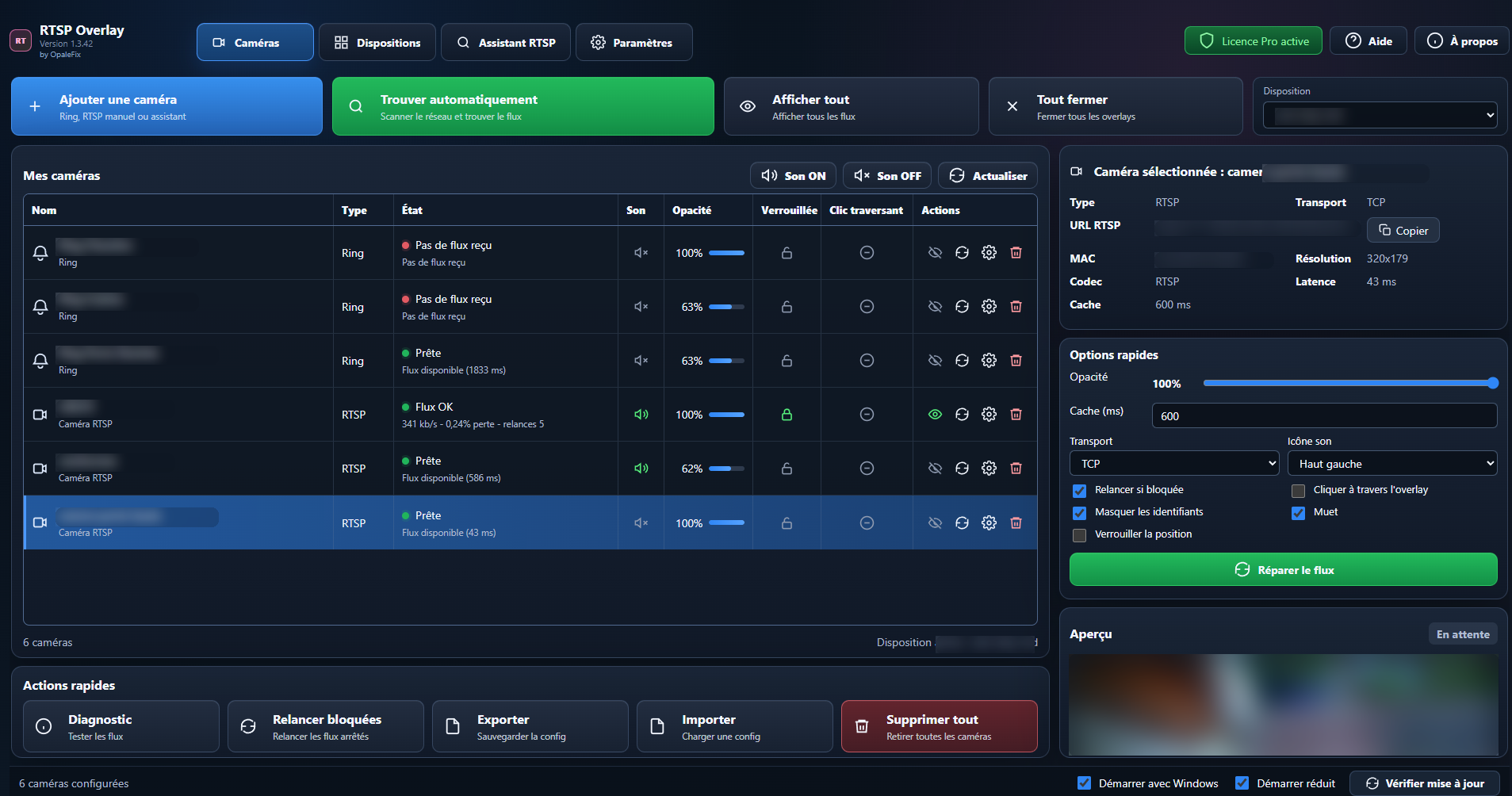
RTSP Overlay focuses on one use case: displaying compatible cameras on the Windows desktop in clean, adjustable, saved windows. The app does not replace an NVR and does not promise universal compatibility. The 14-day trial is there to test your own cameras.